
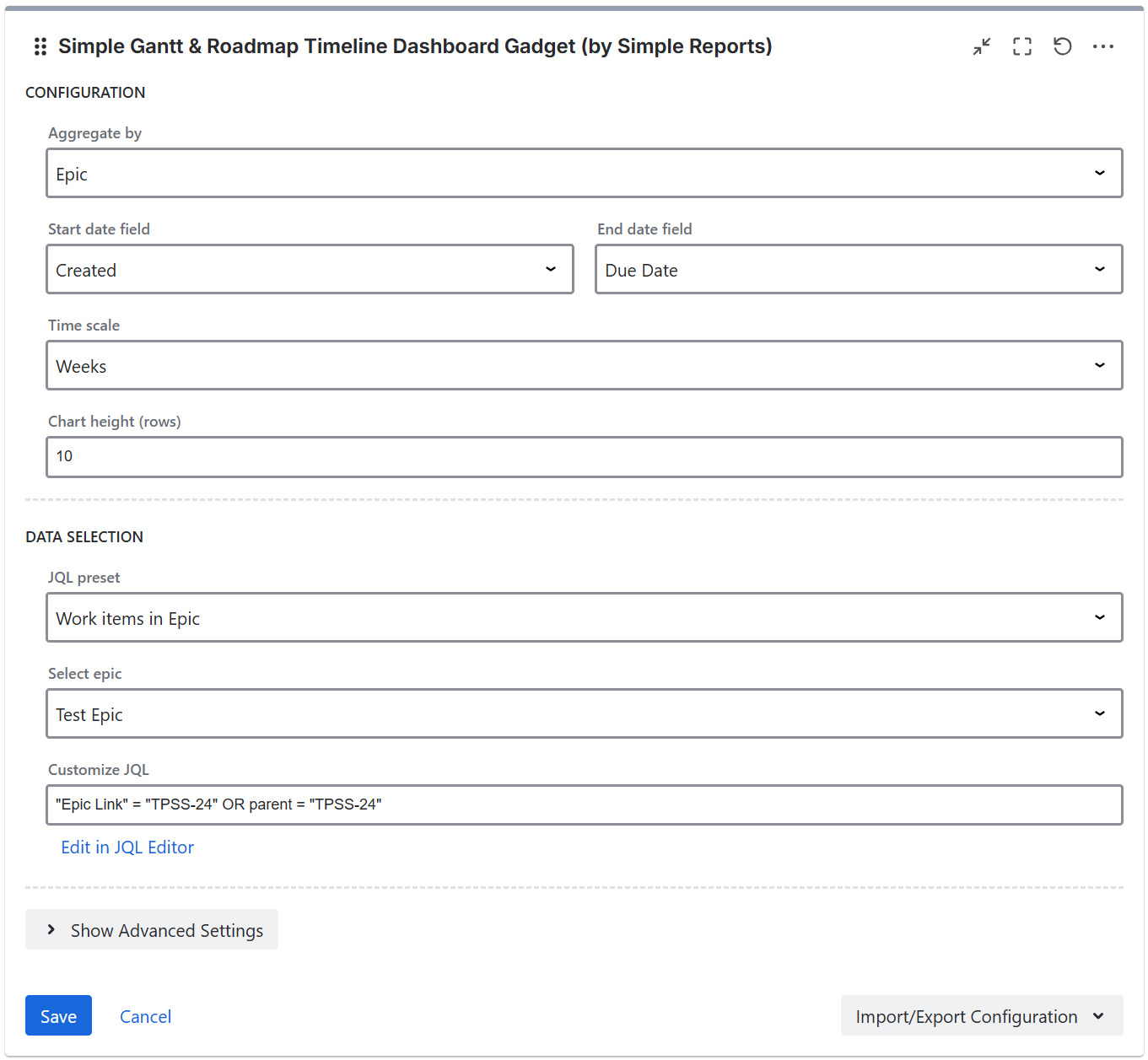
Aggregate by - select the field to group work items by. Options include Epic, Version/Release, Team, Assignee, Component, Label, Space, Work Item Type, Priority, Status, Reporter, Creator, and custom fields. Select "Individual Work Items" to show one bar per issue.
Date fields
Configure which date fields are used for the start and end of each task bar:
-
Start field - the date field used for the start of the bar (Created, Due Date, Resolved, Moved to Done, or custom date fields)
-
End field - the date field used for the end of the bar (same options as start field)
In aggregate mode, the bar spans from the earliest start date to the latest end date across all work items in the group.
Work items without a date value for the selected field do not affect the bar's position on the timeline. Not every work item in the group needs to have dates set — even a single work item with dates is enough to display the aggregate bar on the timeline.
Time scale
Select the granularity of the timeline: Days, Weeks, Months, Quarters, or Years. A warning is shown when columns are too narrow for the selected time scale.
Visible rows
Configure the number of visible rows before a scrollbar appears (1-100, default 10).
Resolution and Status
With default settings, the gadget uses the resolution date to determine completion. Enable "Count work items with Done status as resolved" to include work items in a Done status category even without a resolution date.
Progress calculation
Progress can be calculated based on:
-
Work item count
-
Story points
Story Points field
The gadget auto-detects the Story Points field. If your Jira instance uses a custom field for story points, you can specify the custom field ID manually.
JQL filter

Data supplied to the app can be filtered using JQL filters, with the gadget supplying some JQL presets including: work items in space, work items in Epic, work items in version, work items in active sprints, custom JQL, and saved Jira JQL filters.
If you are running Jira Cloud and want to use Adaptavist ScriptRunner JQL functions you should save them and use them as synchronized filters instead via JQL - filter = "enter name or id of the filter"
Import/Export Configuration
Use the Import/Export option in the gadget footer menu to save or restore gadget configuration as a JSON file. This is useful for duplicating gadgets or transferring settings between dashboards.